
Employee Profile Export
Word Export
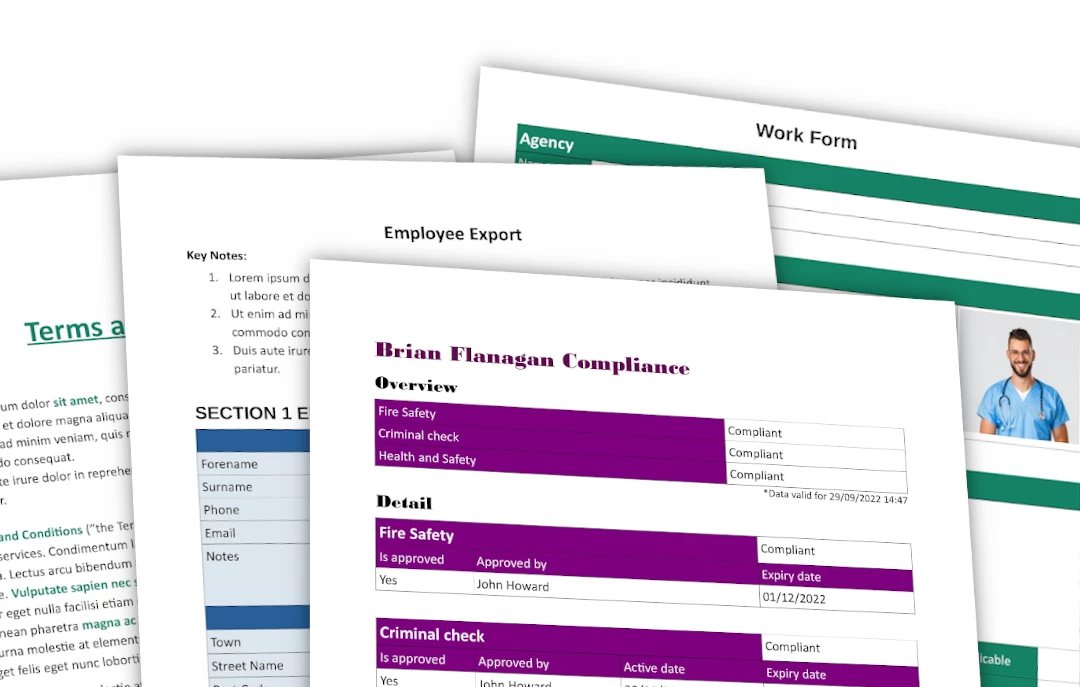
In Company Settings there is a button named Employee Export Templates that will take you to a page where you can upload your templates in Microsoft Word .docx format.
The templates can use tags that will be replaced when exporting real data, you can display all currently available tags by clicking on the Legend button.
The Legend contains links to download several examples that show how to use the tags. There are tags available for company, employee, employee manager, the user that started the export, compliances and dates.
You can change the name of the file by opening the file actions menu by clicking on the three dots icon and choosing the Edit note option.
You can have multiple templates available at the same time.
If the word exports are enabled, you will see a new link within the submenu called Exports with a link for each template that will export the employee data into the file that will be downloaded.
Try to update your template with the tags as described in the legend and upload the file.
Let us know if you need support or assistance on this.
Email Export
Once off settings
In Company settings click to Manage employee email templates (consider opening in a new page to have a bigger screen at least for the initial setup) and then Add in the popup.You can set:
- Name – defining the name of this template
- Template – Create any content you want here. You can use replacements like {employee.forename} {employee.surname}. Full definition is available in https://yourecruit.com/tempman/employee_export_templates_manage.php?show_legend=1 (with exception of the images like {employee.profile_image}, {employee.signature} and {company.logo} as these cannot be copied easily)
- File Links – Click Add to create another link definition.
For each file link, select the relevant compliance from the dropdown. In the Filename field, you can also use placeholders, for example: “{employee.forename} {employee.surname} Right to Work”.
When this is set, save the popup.
Employee profile – daily usage
Then go to the Employee Profile page and mouseover Export. You will see the name of your template—click on it. A new page called Email Export will then appear.
At the top, you will see the email content for the employee with all placeholders replaced. You can copy and paste this into your email, or simply click the Copy button to copy the content to your clipboard.
Below, you will also see blue buttons (based on the File Links you defined). These will download the compliance files to your computer. You can then review the files and easily drag them into your email before sending it.
This gives you full flexibility to modify the content when needed, while speeding up the process of downloading all compliance files in one place.